

Google Cloud Platform (GCP) is a comprehensive suite of cloud computing services that runs on the same infrastructure that Google uses internally for its end-user products, such as Google Search and YouTube. GCP offers a variety of services including computing, storage, and databases, as well as machine learning, data analytics, and more. This blog will explore three specific features of GCP: Key Visualizer, Point-in-Time Recovery (PITR), and Scheduled Backups. We will delve into what they are, how they work, why they are important, and when to use them, followed by a brief tutorial.
What is GCP?
Google Cloud Platform (GCP) provides a suite of cloud services that enable organizations to build, deploy, and scale applications, websites, and services on the same infrastructure as Google. It offers solutions for computing, storage, networking, big data, machine learning, and the internet of things (IoT), among others.
Key Visualizer:
What
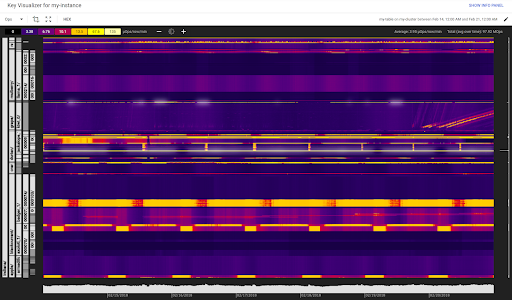
Key Visualizer is a tool provided by GCP to help users understand the performance and usage patterns of their Cloud Bigtable instances. It visually represents the distribution of data across the nodes in a Bigtable cluster, highlighting hotspots and skewed data distributions that could affect performance.
How
Key Visualizer works by collecting performance data over time and creating visual heatmaps. These heatmaps show the read and write patterns, latency, and the distribution of keys across the Bigtable instance. By examining these visualizations, users can identify which keys are causing performance issues and make informed decisions to optimize their database.
Real-Life Example: Imagine you run a popular e-commerce website. During a major sale event, you notice that some customers experience slow loading times. Using Key Visualizer, you identify that a specific product category is generating high read traffic, causing a hotspot. With this insight, you can optimize your data distribution or adjust caching strategies to improve performance.
Why
Using Key Visualizer helps in:
- Identifying performance bottlenecks.
- Understanding data distribution and access patterns.
- Making informed decisions to improve Bigtable performance.
- Ensuring efficient resource utilization and cost management.
When
Key Visualizer should be used when:
- You notice performance degradation in your Bigtable instance.
- You need to optimize data distribution.
- You want to proactively monitor and maintain the performance of your database.
Point-in-Time Recovery (PITR)
What
Point-in-Time Recovery (PITR) is a feature that allows users to recover their databases to a specific point in time. This capability is crucial for mitigating the impact of accidental data deletions or corruption.
How
PITR works by continuously backing up database changes, enabling users to restore the database to any previous state within a specified retention period. In GCP, this feature is often associated with services like Cloud SQL and Firestore.
Real-Life Example: Suppose your development team accidentally deletes a critical table in your application’s database. With PITR, you can quickly restore the database to just before the deletion occurred, minimizing downtime and data loss.
Why
PITR is important because:
- It provides a safety net against accidental deletions or data corruption.
- It allows for quick recovery of lost data without significant downtime.
- It enhances data reliability and business continuity.
When
PITR should be used when:
- You need robust data protection and disaster recovery plans.
- Your application requires minimal downtime and quick recovery capabilities.
- You manage critical data that cannot afford to be lost or corrupted.
Scheduled Backups
What
Scheduled Backups are automated backups that are created at regular intervals. These backups ensure that your data is regularly saved and can be restored in case of data loss or corruption.
How
Scheduled Backups in GCP can be set up through the Cloud Console or using GCP’s command-line tools. Users can configure the frequency and retention period of these backups according to their needs. Services like Cloud SQL provide built-in options for setting up automated backups.
Real-Life Example: Imagine running a blog that updates content daily. You can set up scheduled backups to occur every night, ensuring that all your latest posts and changes are safely backed up and can be restored if something goes wrong.
Why
Scheduled Backups are vital for:
- Ensuring data availability and resilience.
- Reducing manual effort in creating backups.
- Maintaining compliance with data retention policies.
- Providing a reliable mechanism for data recovery.
When
Scheduled Backups should be used when:
- Your application handles important data that needs regular backups.
- You want to automate the backup process to reduce manual intervention.
- You need to comply with regulatory data protection requirements.
Tutorial: Setting Up Key Visualizer, PITR, and Scheduled Backups
Setting Up Key Visualizer
1. Navigate to Bigtable Instance:
- Go to the GCP Console.
- Select your Bigtable instance.
2. Access Key Visualizer:
- In the Bigtable instance menu, click on "Key Visualizer".
- Review the visual heatmaps to identify any hotspots or performance issues.
Configuring Point-in-Time Recovery (PITR)
1. Enable PITR:
- Go to the GCP Console.
- Select your database service (e.g., Cloud SQL).
- Under the "Backups" section, enable "Point-in-Time Recovery".
2. Configure Retention Period:
- Set the retention period for how long you want to retain the continuous backups.
3. Restore Data:
- In case of data loss, navigate to the "Backups" section.
- Select the desired point in time and initiate the recovery process.
Setting Up Scheduled Backups
1. Navigate to Database Instance:
- Go to the GCP Console.
- Select your database service (e.g., Cloud SQL).
2. Configure Backup Settings:
- Under the "Backups" section, enable "Automated Backups".
- Set the schedule for backups (e.g., daily, weekly).
3. Monitor Backups:
- Regularly check the backup status and logs to ensure backups are running as scheduled.
Conclusion
GCP offers robust tools and features to ensure data performance, reliability, and recoverability. Key Visualizer, Point-in-Time Recovery (PITR), and Scheduled Backups are essential components for managing your cloud databases effectively. By leveraging these tools, you can optimize performance, protect against data loss, and ensure your applications run smoothly and efficiently. Whether you are a small startup or a large enterprise, implementing these features will provide a solid foundation for your data management strategy on Google Cloud Platform.
Engage with GCP Today:
To start using these features, explore the GCP Console and set up your cloud environment with the right tools for performance monitoring, data recovery, and automated backups.