

GoHighLevel missed call text back sends an SMS to a caller within seconds when you do not pick up, so the conversation continues by text and the lead is not lost. You can switch it on with one setting, or build it as a workflow when you need tags, opportunities and rules that stop duplicate messages. This guide covers both, plus the checks that keep it reliable.
It is written from the build side. At Tech Inject we set up HighLevel workflows as engineers, which mostly means thinking about the cases where a simple automation misfires.
Before you start: two prerequisites
First, the call has to arrive at a HighLevel phone number. If your public number is with another carrier, forward it to your HighLevel number, and make sure unanswered calls come back to HighLevel so that it records the call as missed.
Second, in the US your number must be registered for business texting before carriers will deliver messages reliably. This is the A2P 10DLC registration, completed inside your sub-account's phone settings. Unregistered traffic is filtered, so a perfect workflow still sends nothing. Requirements differ by country, so check the rules for where your customers are. HighLevel's help centre has the current registration steps.
Option 1: the built-in setting
HighLevel includes a missed call text back option in the sub-account's business settings. You switch it on and write the message.
This is the right choice when all you need is one text after a missed call. It takes a few minutes and there is very little to go wrong.
Its limits show up quickly. It does not tag the contact, create an opportunity, tell a team member, or know about any other sequence that contact is already in. If you run other follow-up workflows, move to option 2 and turn the built-in setting off so that the caller does not receive two texts.
Option 2: build it as a workflow
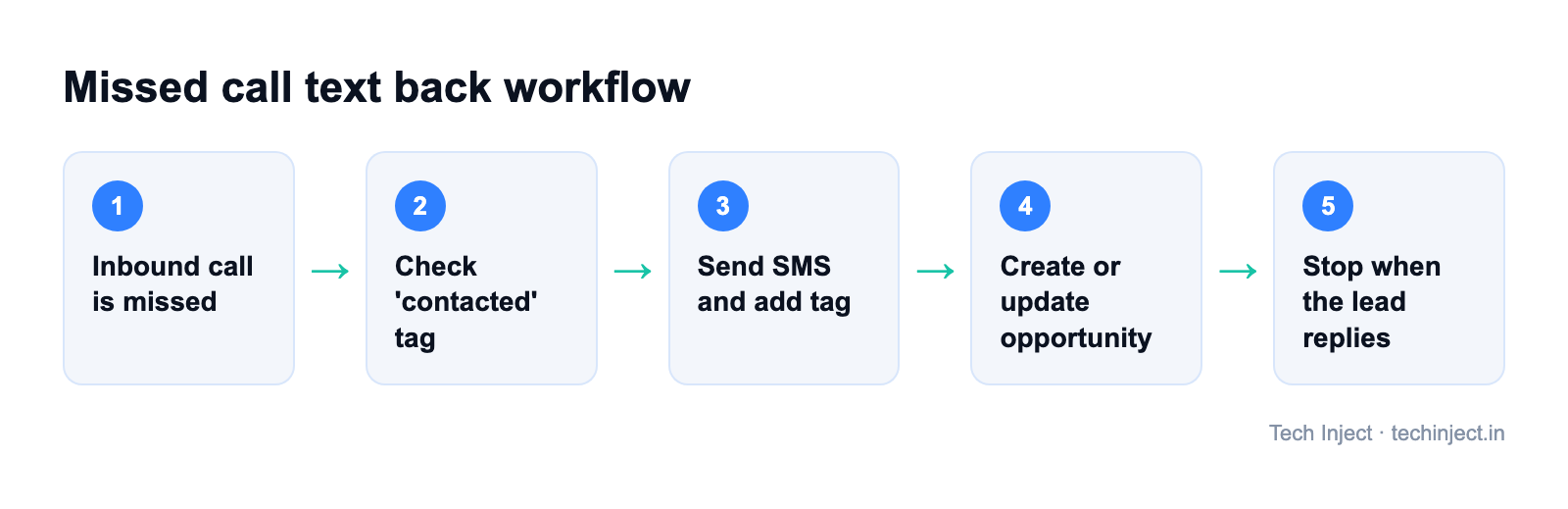
A workflow gives you control over who enters, what happens and when it stops. The structure we use is:
- Trigger: an inbound call whose status is missed, no answer or voicemail. Filter to inbound calls only.
- Entry check: continue only if the contact does not already carry your "contacted" tag.
- Send the SMS: a short, human message such as "Sorry we missed your call. How can we help?" Include the business name.
- Tag the contact: add the "contacted" tag so that other workflows can see this lead is being handled.
- Create or update an opportunity: place it in the first stage of your pipeline so that the lead appears on the board.
- Notify the team: an internal notification to whoever should call back.
- Stop condition: end the workflow when the contact replies or books an appointment.
Feature names in the builder change from time to time, so match these steps to what you see in your account.
How to stop duplicate messages
Most complaints about missed call text back are about leads getting too many messages, not too few. Three settings prevent that.
- A shared "contacted" tag. Every follow-up workflow checks for it on entry and adds it when it sends its first message. If one workflow is already working a lead, the others stay out.
- Re-entry switched off. Someone who calls three times in ten minutes should receive one text, not three. Leave re-entry off unless you have a reason and a time window.
- Stop on response. When the lead replies, the sequence ends and a person takes over. Nothing reads worse than an automated nudge arriving after a customer has already answered.
If you also run a new-lead follow-up workflow for form and ad enquiries, give both workflows the same tag and the same stop conditions. A person who fills in a form and then calls is one lead, not two.
Business hours and message content
Decide what should happen outside working hours. A text at 11 p.m. saying "we will call you right back" sets an expectation you will not meet. Either hold the message until opening time, or use a different message that says when you will reply.
Keep the text short and specific. Say who you are, acknowledge the missed call and ask one question. Avoid links in the first message, since they make carrier filtering more likely. Follow the opt-out rules that apply where your customers are.
How to test before going live
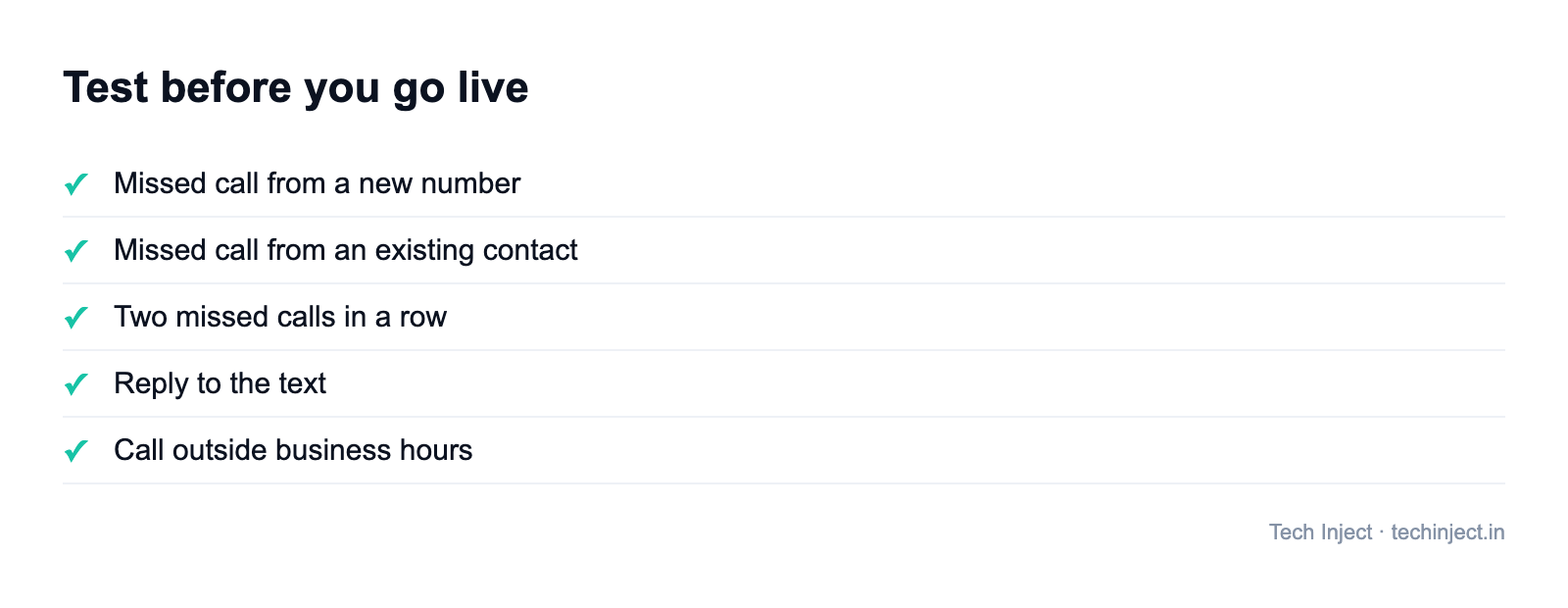
Test with a real phone and a test contact, not just the builder's preview. Run each of these and check the workflow's execution history afterwards:
- A missed call from a number that is not yet a contact.
- A missed call from an existing contact who already has the "contacted" tag.
- Two missed calls a minute apart.
- A reply to the text, to confirm the sequence stops.
- A call outside business hours.
For each one, confirm that the text arrived once, the tag was added, the opportunity appeared in the right stage and the notification reached the right person. Keep screenshots of the execution log. They are useful later when someone asks why a lead did or did not get a message.
Common mistakes
- Leaving the built-in setting on while a workflow does the same job.
- Publishing the workflow but leaving it in draft, or the reverse: testing on a live number without a filter.
- No tag or stop condition, so the lead stays in the sequence after replying.
- Forwarding calls in a way that never records them as missed in HighLevel.
- Skipping number registration and assuming the workflow is broken.
What to build next
Once missed calls are covered, the same pattern extends to the rest of your lead handling: instant follow-up on new form and ad leads, booking reminders, no-show recovery and review requests after a completed job. When HighLevel needs to exchange data with accounting or job-management software, that part is usually better handled through its API with a tool such as n8n, where retries and error alerts are easier to control.
Tech Inject sets up and tests these workflows as part of our GoHighLevel automation services. If you would like yours reviewed or built, get a free project scope and we will map the first workflow with you.
Frequently Asked Questions
It is an automation that sends an SMS to a caller within seconds when their inbound call to your HighLevel number is not answered. The reply arrives in the conversations inbox so your team can continue by text, and the lead is recorded instead of lost.
The most common causes are a number that is not registered for business texting, the call not reaching a HighLevel number in the first place, a workflow that is still in draft, a filter that excludes the call status you are getting, or a contact marked as do-not-disturb. Check the workflow's execution history for the contact to see which step stopped.
The built-in setting is enough if all you want is one text after a missed call. Use a workflow when you also want to tag the contact, create an opportunity, notify a team member, respect business hours or avoid clashing with another follow-up sequence.
The feature is part of the platform, but each text and call is billed as usage on top of your plan. HighLevel's pricing page lists the current plans and usage rates.